Quick answer: Prioritize stable frame pacing, readable effects and fast input before spending performance on small visual upgrades.
Some links in this article are tracked. GamerigPro may earn a commission if you take an eligible action through them. This does not change your cost or our editorial judgment.
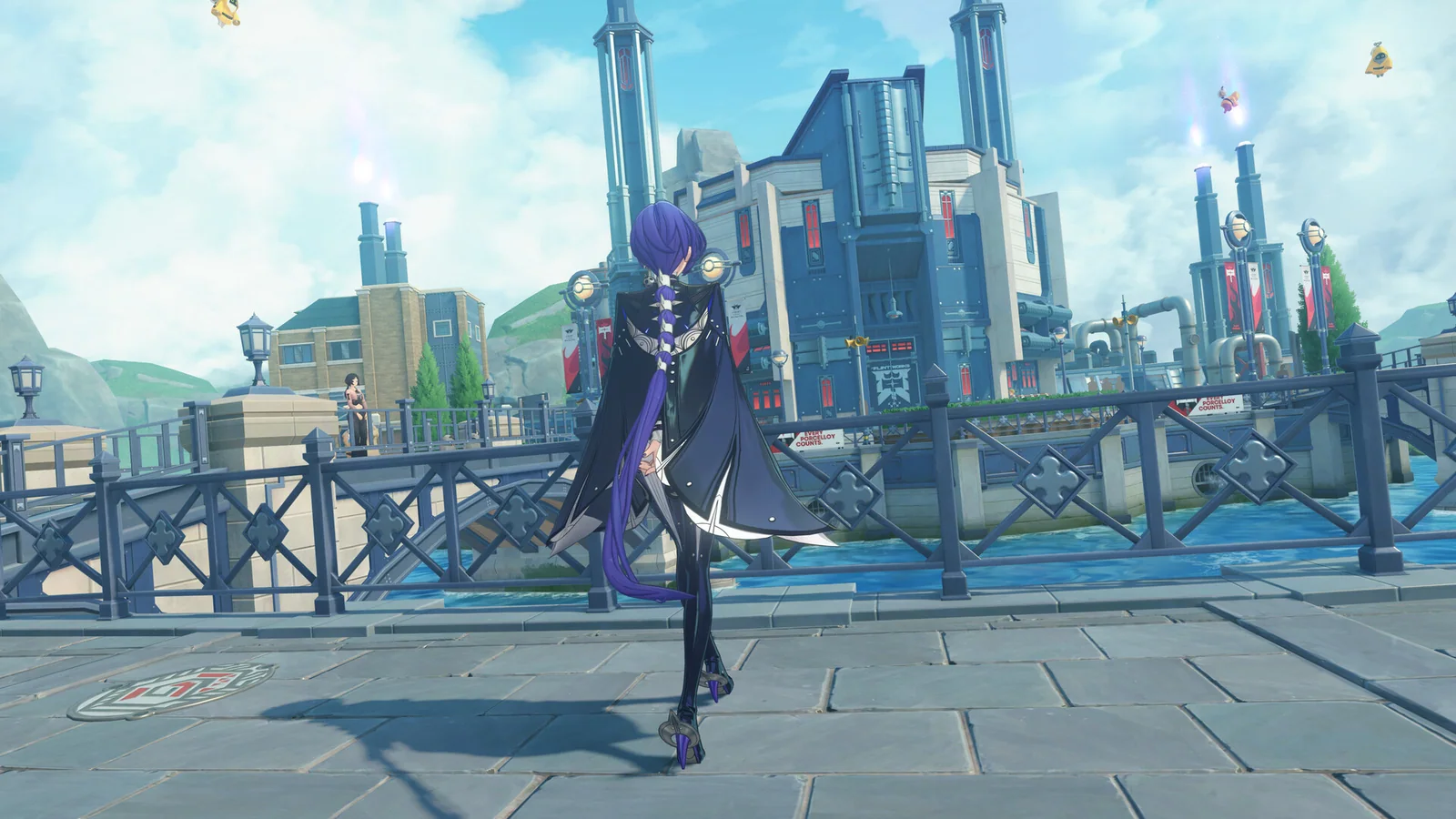
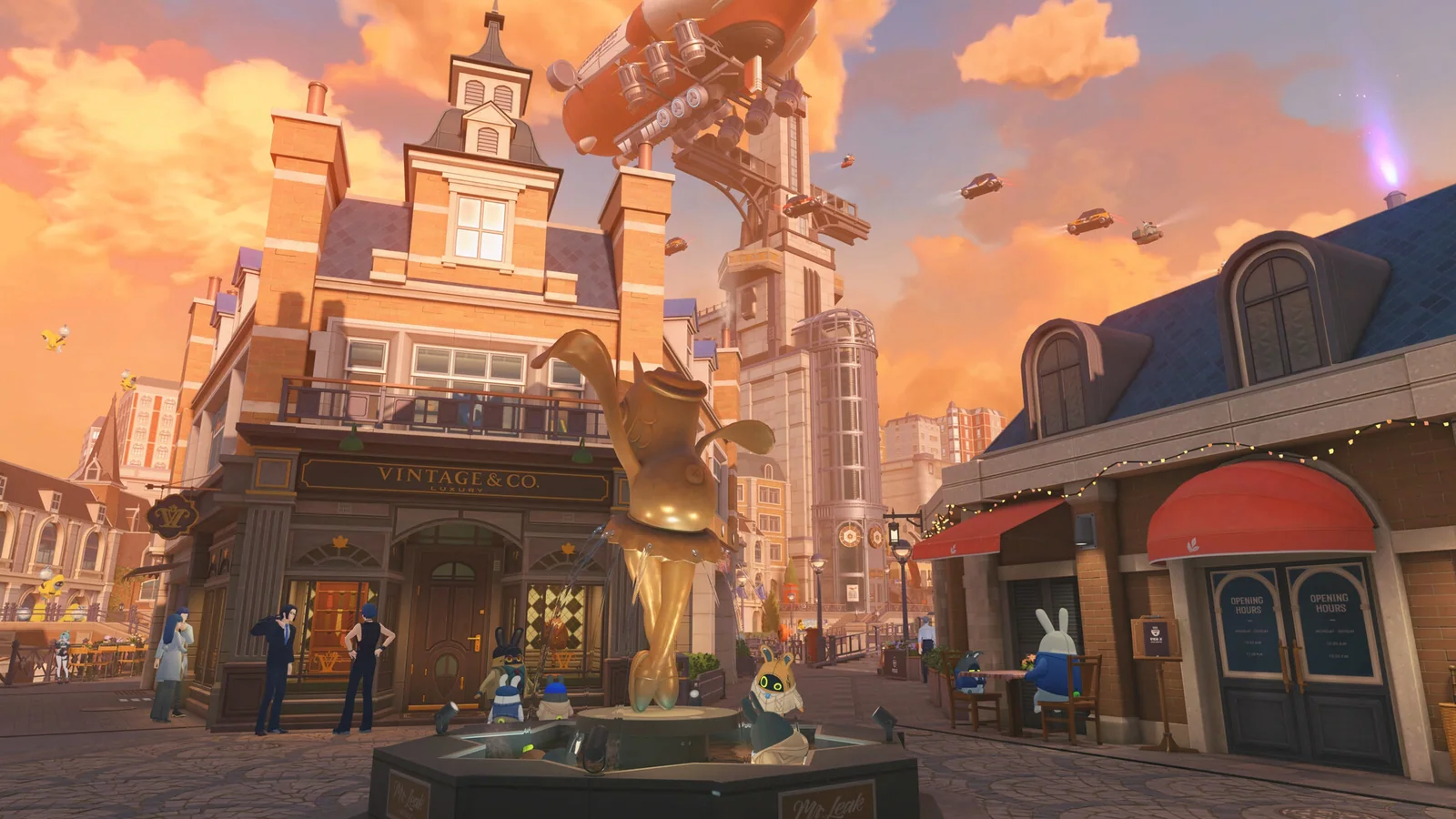
Zenless Zone Zero looks sharp when its animation, lighting and effects stay clear during a fast rotation. The best PC settings are therefore the ones that keep combat readable without turning New Eridu into a flat scene. Install Zenless Zone Zero on PC, establish a stable baseline and change one graphics group at a time.
Confirm that the PC is ready
The official launch requirements list Windows 10 64 bit and DirectX 11.1 or newer. The minimum PC specification includes a seventh generation Intel Core i5, 8 GB of RAM and a GeForce GTX 970. The recommended level moves to a tenth generation Intel Core i7 with a GeForce GTX 1660 or better.
These requirements describe the original client baseline. New visual features can demand much stronger hardware. Update the graphics driver, close unnecessary overlays and install the game on an SSD if one is available.
Pick a frame-rate target you can hold
Set a frame-rate target based on the busiest fight you normally play, not a quiet city corner. Start at 60 fps when you want a predictable target. Use a higher or unlimited setting only if the PC remains smooth during assists, chain attacks and effect heavy encounters.
Frame generation can increase displayed frames on compatible hardware, but it should not hide a weak base frame rate. First create a stable native or upscaled result. Add frame generation after input and frame pacing already feel good.
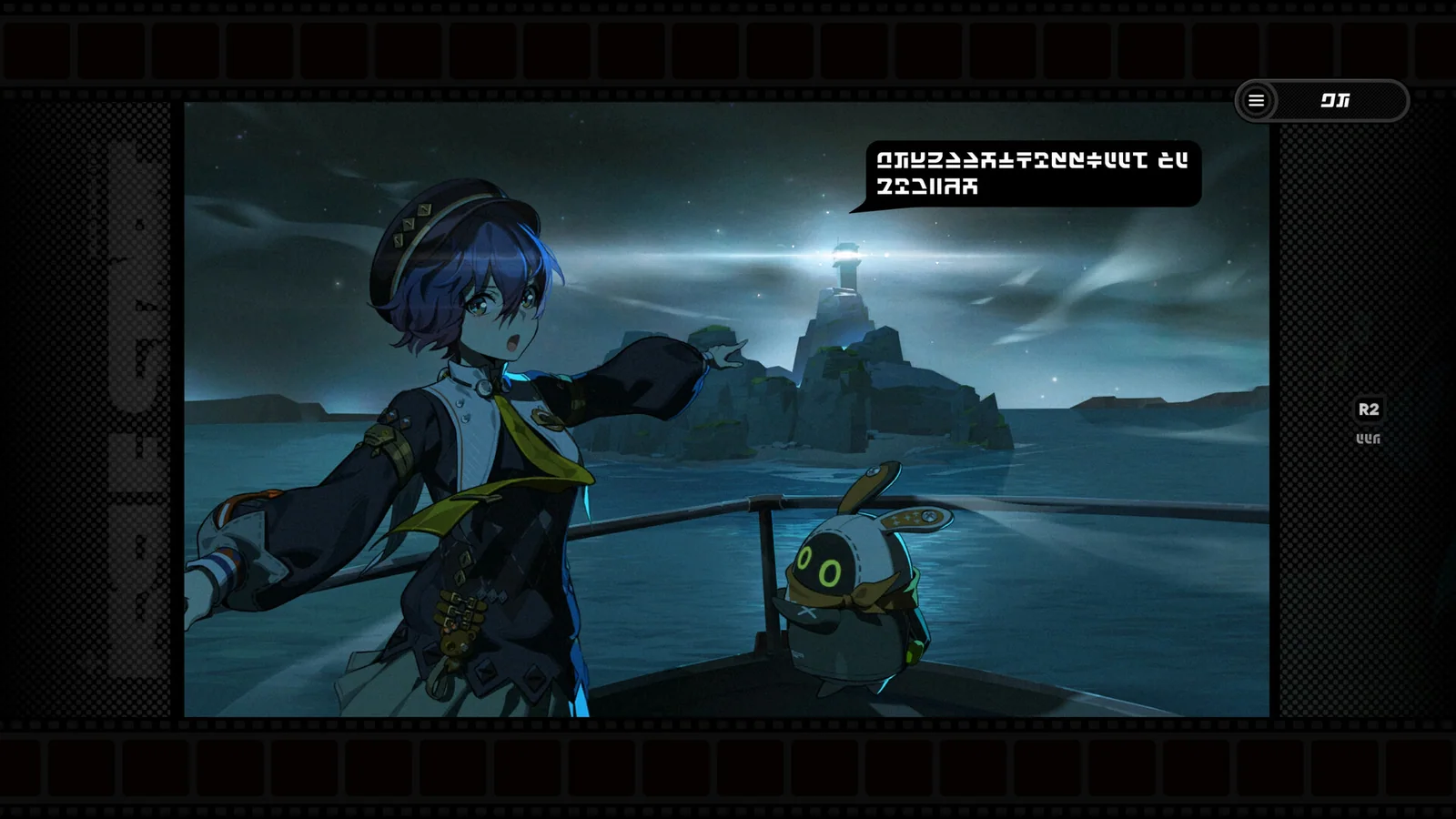
For the Windows route discussed here, open the Zenless Zone Zero PC offer when you are ready to install or return to the game. Check the platform and account options at the destination first.
Start from a stable preset, test the same encounter and keep the settings that improve clarity.
Keep combat effects readable
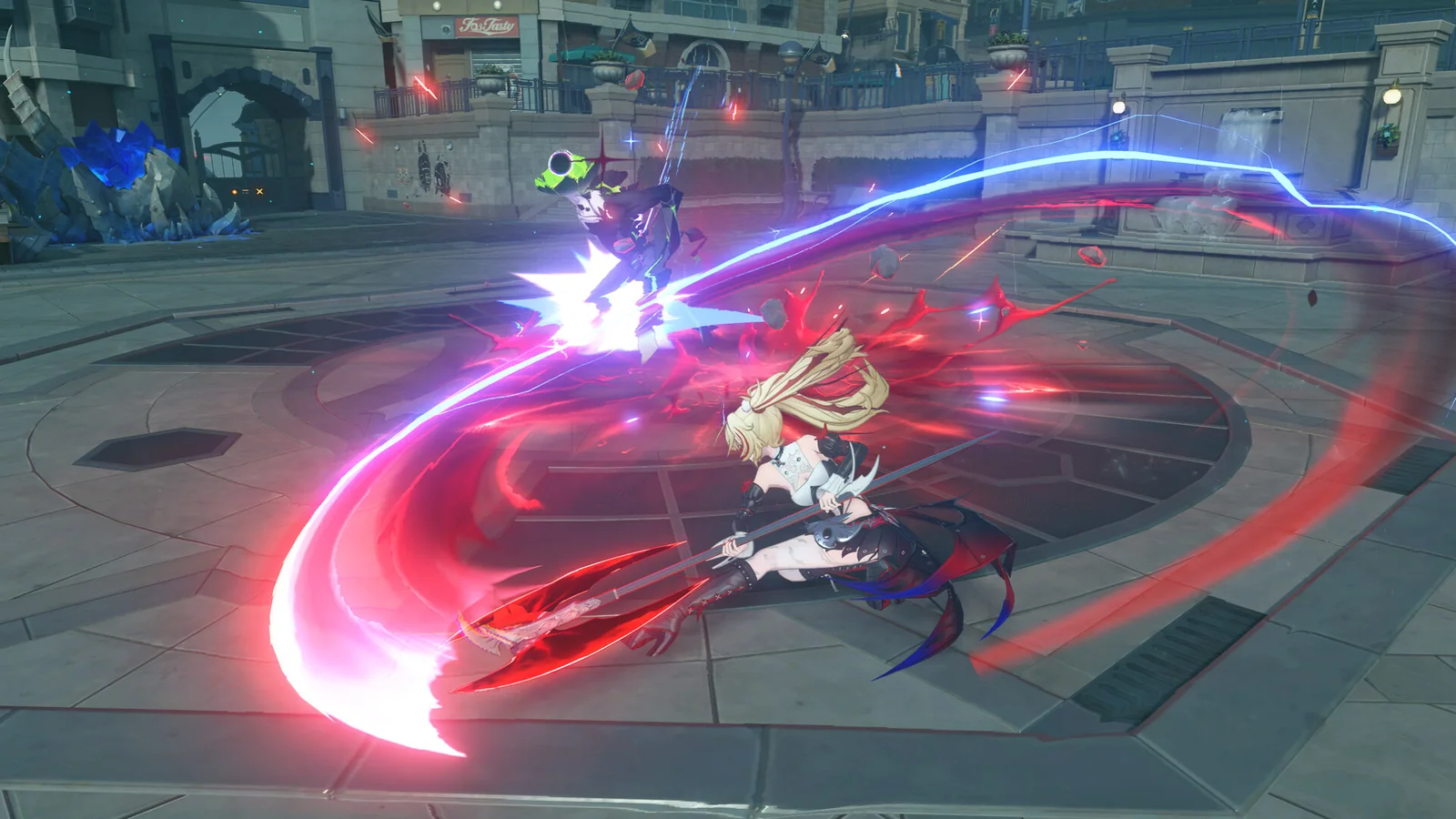
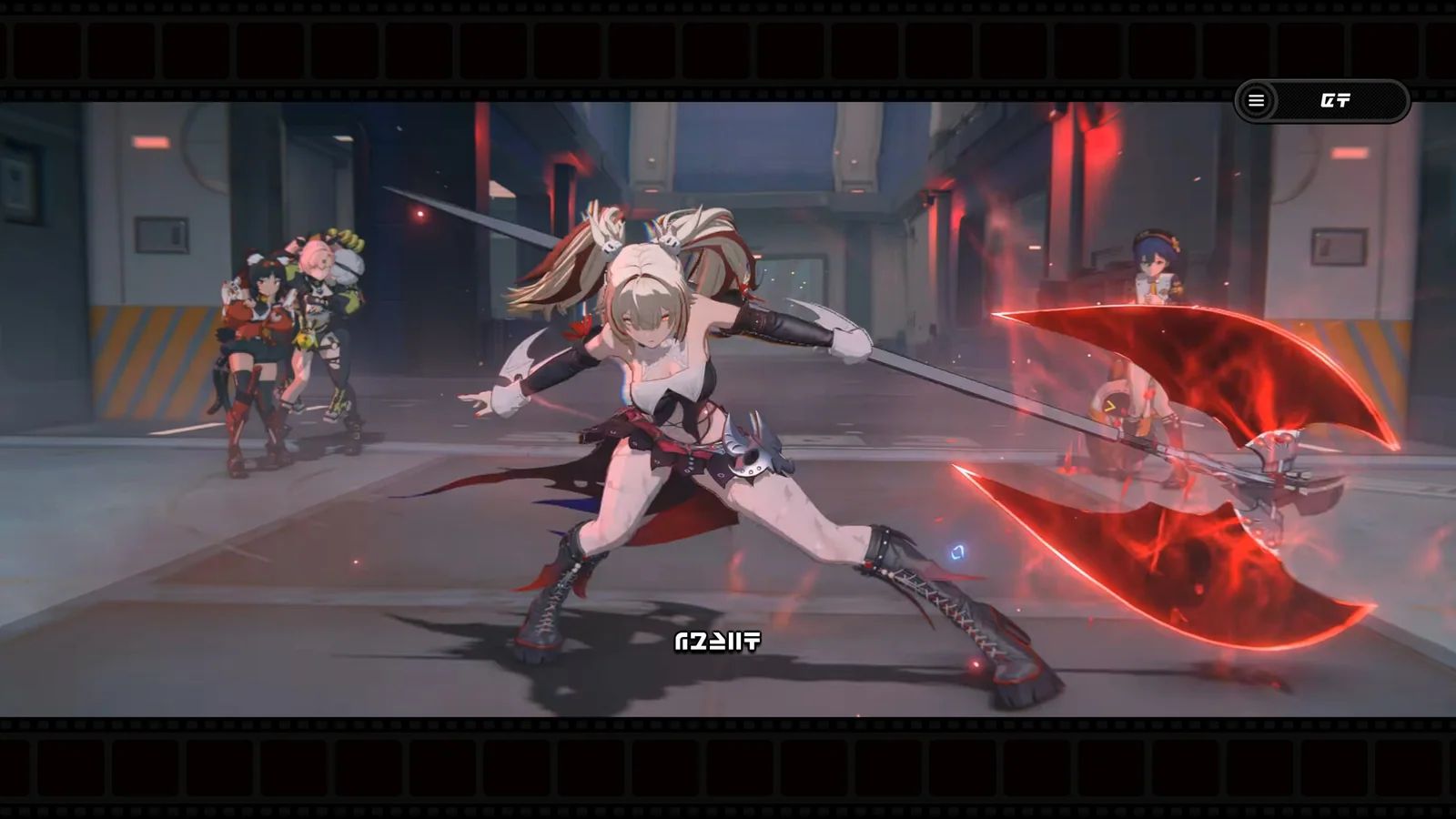
Begin with the medium or high image preset, then reduce the costliest visual features. Shadows, global illumination and ray tracing should be the first places to look when GPU load is too high. Crowd density can also reduce pressure in city areas. Keep character quality and effects clear enough to identify enemy signals, assist flashes and attack timing.
For a practical balanced preset at 1080p:
- Use native resolution or a quality focused super resolution mode.
- Keep character detail high if graphics memory allows it.
- Set shadows and crowd density to medium.
- Leave ray tracing off on lower or midrange GPUs.
- Keep effects at medium, then raise them only after testing combat.
- Choose a frame-rate limit the system holds consistently.
Use DX11 or DX12 deliberately
The official visual upgrade FAQ says supported NVIDIA RTX 20 series and newer cards can use DX12 through an option below the launch button. DX12 enables advanced features on compatible hardware, but its first run can trigger shader compilation and temporary stutter. Let that process finish.
If DX12 causes visual problems or crashes, return to DX11 while troubleshooting. The official guidance also recommends a current NVIDIA driver for the newer rendering path. Ray tracing requires an RTX class card and at least 8 GB of graphics memory.
Compatible RTX cards can use DLSS or FSR super resolution through Options, Display, Advanced. Start with the quality mode at 1080p or 1440p. Move toward performance only when the frame rate still misses your target.
Test one busy encounter
Use the same Hollow mission and repeat a full rotation. Include a defensive assist, a chain attack and a camera turn through several effects. Then walk through a populated city area. This gives each setting change a useful comparison across combat and exploration.
If you are still learning rotations, our Zenless Zone Zero beginner team guide will help you build a repeatable combat test.
Protect input response
Close browser video, capture tools and unnecessary overlays before the final test. On Windows, frame generation requires Hardware-Accelerated GPU Scheduling. Enable it under System, Display, Graphics, then restart the PC. If capture software crashes with DX12, test without the capture source before blaming the game preset.
Save the working preset
Record the resolution, frame limit, upscaling mode and three settings you changed. Recheck them after a major update because the client can add options or adjust preset behavior. The goal is a repeatable setup that feels clear every time you enter combat.
Official references: Zenless Zone Zero release FAQ and PC visual experience FAQ.
See it in motion
An official video gives you a clearer look at the world, combat and pace.
Start from a stable preset, test the same encounter and keep the settings that improve clarity.