
Quick answer: Prepare storage, choose a sensible baseline and test performance in a busy part of Hethereau before raising visual quality.
Neverness to Everness is a dense open world game with city traffic, fast combat and large sightlines. Those scenes can expose a weak setup quickly. Before you install Neverness to Everness on PC, check the official requirements, clear enough temporary space and decide on a realistic performance target.
Check the official PC requirements
The launch FAQ lists Windows 10 64 bit or newer as the minimum operating system. Its minimum PC target includes an Intel Core i7-10700 with a GeForce GTX 1660 or Radeon RX 5600. The recommended target moves to an Intel Core i7-12700 with a GeForce RTX 3060 or Radeon RX 6700.
Treat those parts as a compatibility guide, not a promise that every scene will hold the same frame rate. Resolution, background software, cooling and driver health still matter. If your PC sits near the minimum line, begin at 1080p with a moderate frame rate cap and a balanced graphics preset.
Leave enough room for installation
The standalone launch FAQ asks for at least 60 GB of free space, plus another 60 GB temporarily while the launcher extracts files. The current Steam requirements list 70 GB for that storefront. A drive that shows only 65 GB free can therefore fail even though the final game fits. Clear roughly 120 GB before the first installation, then check the final size again after extraction.
Use an SSD when possible. The publisher recommends one for faster startup and loading. Choose an install path that uses English characters only because the official FAQ says other characters can cause a directory error.
If you are still choosing a client, read our NTE Steam, Epic and standalone PC guide before downloading. Use the same account provider and server you intend to keep.
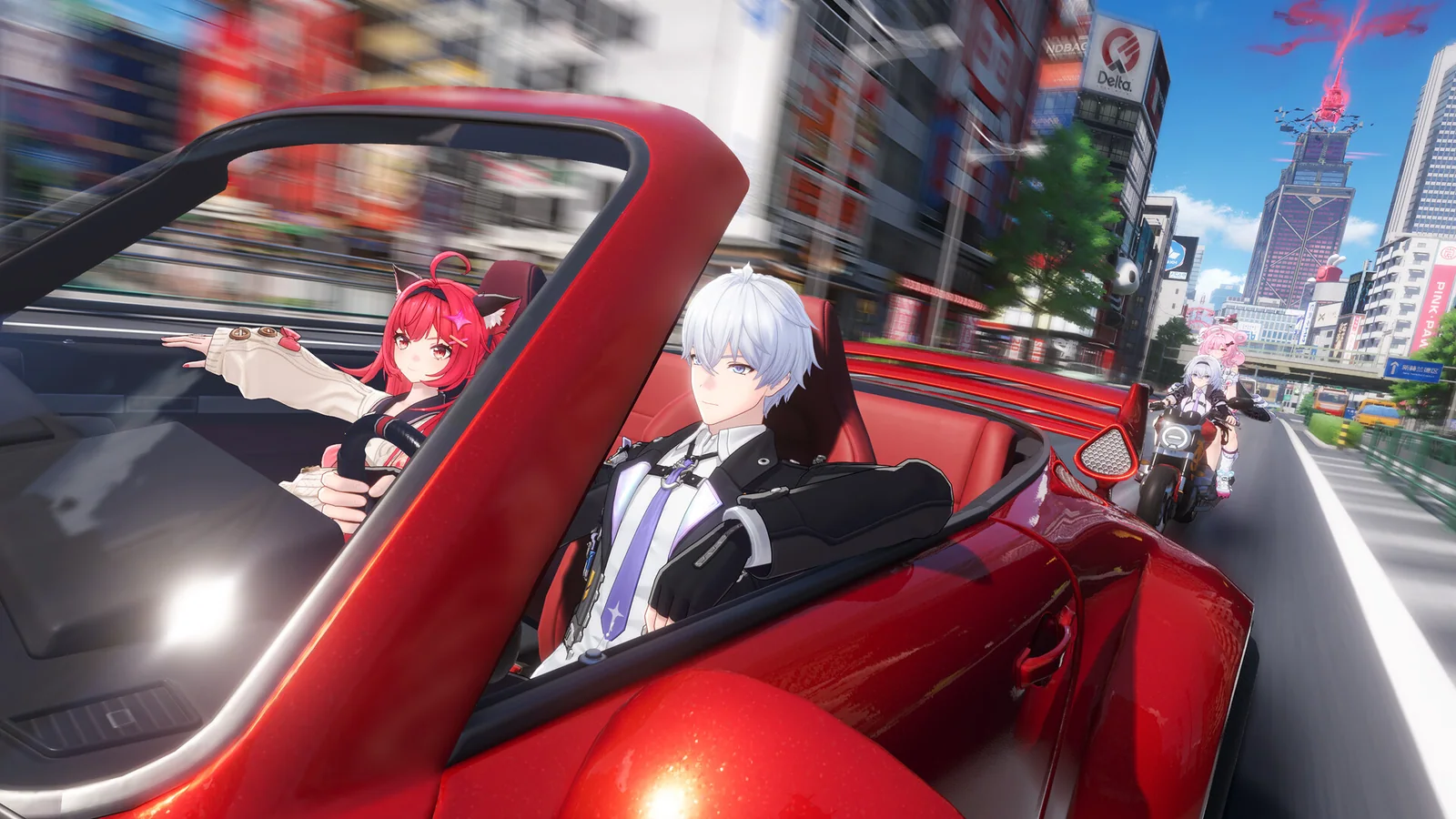
Begin with a balanced preset
Start with balanced settings and a frame-rate cap your PC can hold. A stable 60 fps target usually feels better than an unlocked counter that jumps between smooth and uneven motion. On a minimum level GPU, begin at 1080p and reduce the expensive settings before cutting image clarity across the entire scene.
Lower shadows, reflections and effect quality one step at a time. Keep texture quality at a level that fits your graphics memory. Texture changes often affect memory use more than raw frame rate, so lower them when you see delayed loading, sharp stutters or missing detail.
Test a repeatable city route
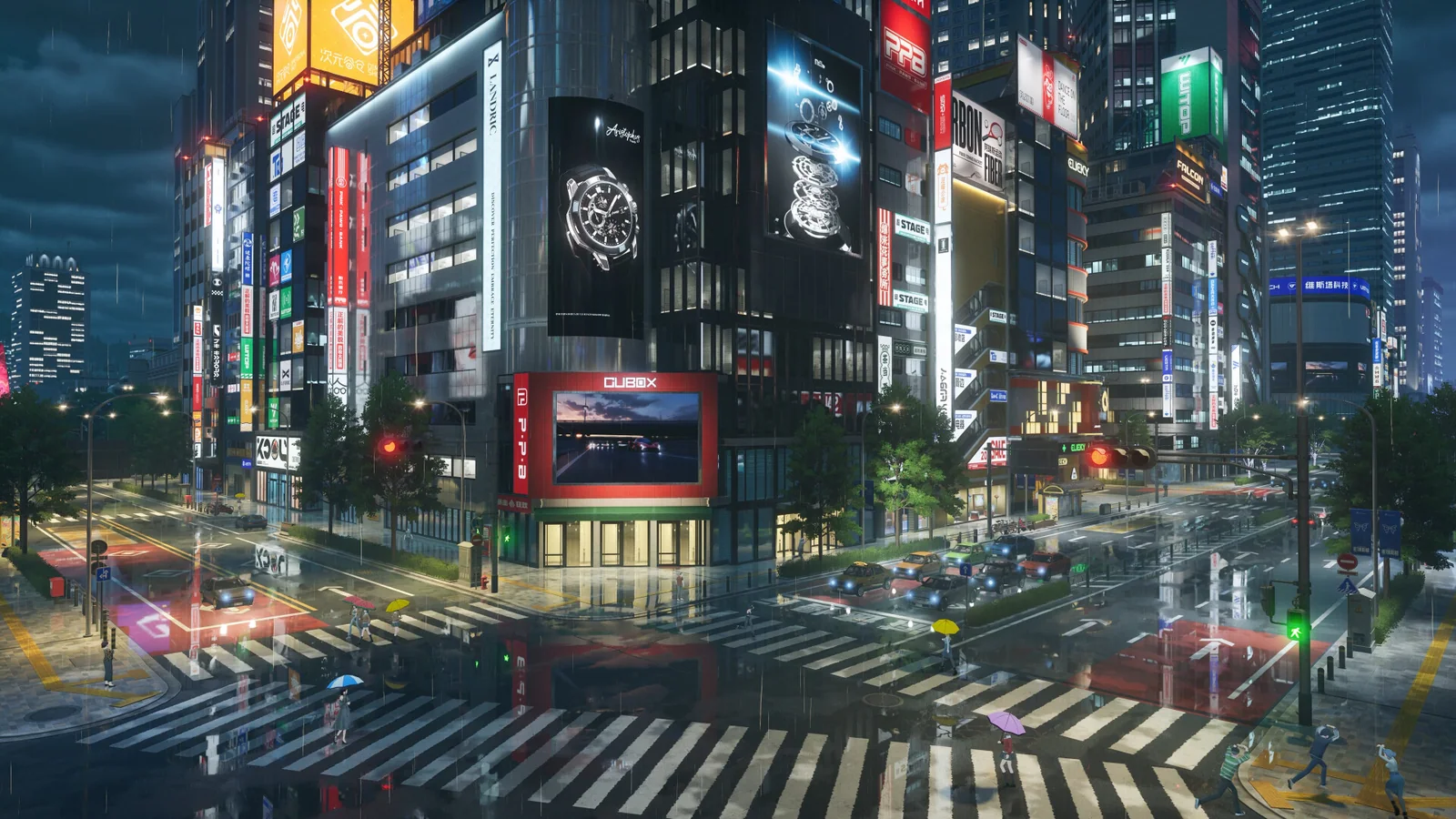
Use the same busy street, drive through traffic, rotate the camera and enter one combat encounter. Test performance in Hethereau after each major change. A quiet indoor room is useful for checking visual quality, but it cannot reveal the load created by traffic, pedestrians and combat effects together.
Watch for three different problems:
- A consistently low frame rate usually means the GPU settings or resolution are too high.
- Short freezes when turning can point to shader compilation, storage or graphics memory pressure.
- Slower input during online play may come from network latency rather than the graphics preset.
Fix launcher and crash problems safely
If a download fails verification, restart the launcher and use Repair files, then One-click repair. If that does not work, the official FAQ recommends reinstalling the launcher and game files. Do not download replacement files from an unrelated website.
The publisher also lists specific causes for some crashes. Update beyond NVIDIA driver 595.79 if you are still using it. Close MSI Afterburner, RivaTuner Statistics Server and Astrill VPN while testing. Change one variable at a time so you can identify the real cause.
Keep the final setup simple
Save a preset that survives the busiest route you tested. Keep Windows power mode sensible, close heavy browser tabs before playing and leave free space for patches. After a major game or driver update, repeat the same route before changing several settings at once.
Once the PC is stable, our Neverness to Everness Steam guide explains the game, account login and first session in more detail.
Official references: NTE launch FAQ and NTE Steam, Epic and Samsung Galaxy Store FAQ.
See it in motion
An official video gives you a clearer look at the world, combat and pace.