
Quick answer: Compare DLSS 4.5, AMD FSR Redstone and Intel XeSS 2, then choose super resolution and frame generation for your desktop GPU.
DLSS, FSR and XeSS can reduce the amount of work a desktop GPU performs for each conventionally rendered frame. They can also add generated frames in supported games. Those are separate jobs, and combining them without understanding the base frame rate can produce an impressive FPS counter that still feels slow or looks unstable.
The practical rule is simple. Establish a stable native or upscaled base first. Add frame generation only when controls, frame time and image quality already feel reliable.
Separate the four technologies inside the menu
Modern graphics menus often group several features under one brand name:
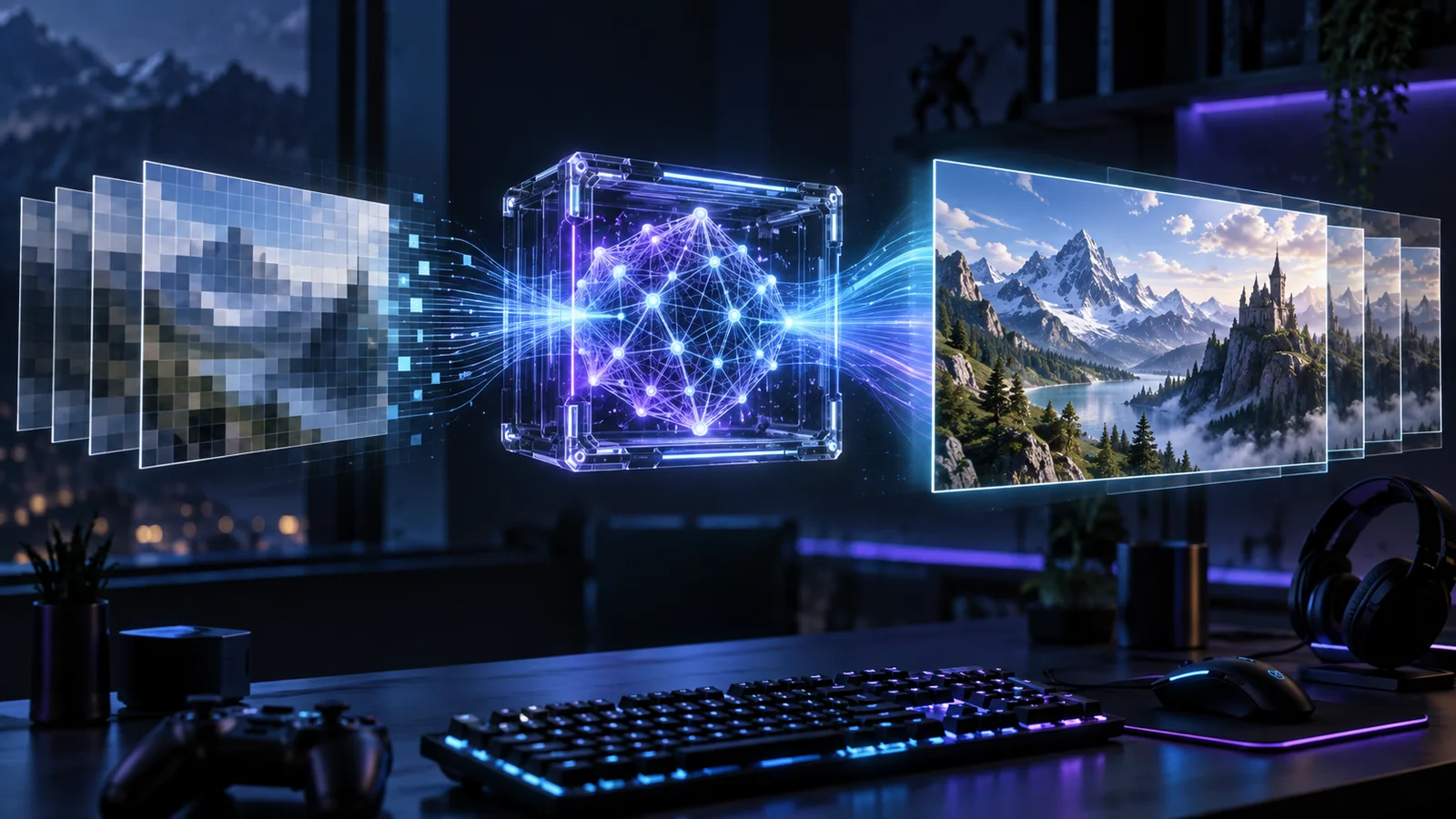
- Super resolution renders below the output resolution and reconstructs a higher-resolution image.
- Native anti-aliasing uses the reconstruction model at native resolution to improve edge quality without reducing the internal pixel count.
- Frame generation inserts generated frames between conventionally rendered frames to increase displayed smoothness.
- Low-latency technology reduces parts of the input-to-display pipeline so frame generation does not add unnecessary delay.
Ray reconstruction is another distinct feature. It replaces selected hand-tuned denoisers in supported ray-traced games. It can improve reflection and lighting stability, but it does not make every ray-tracing effect free.
Test these features one layer at a time. If you enable upscaling, frame generation and maximum ray tracing together, you will not know which change caused an artifact or latency problem.
Understand the 2026 desktop feature families
NVIDIA DLSS is available on GeForce RTX GPUs, but the exact feature depends on the generation. DLSS Super Resolution and the newer transformer models support a wider range of RTX hardware. Standard Frame Generation is associated with RTX 40 and RTX 50 Series cards. Multi Frame Generation and the newer dynamic modes target RTX 50 Series hardware. NVIDIA announced DLSS 4.5 with a second-generation transformer model for Super Resolution and new Dynamic Multi Frame Generation options.
AMD groups its current machine-learning features under FSR Redstone. The suite includes FSR Upscaling, formerly described as FSR 4, plus Frame Generation and Ray Regeneration on supported Radeon hardware and games. FSR 3 remains important because its temporal upscaling and frame generation have broader GPU compatibility than the complete Redstone feature set.
Intel XeSS 2 combines XeSS Super Resolution, XeSS Frame Generation and Xe Low Latency. Super Resolution can operate on more than one GPU brand in supported games, while the best acceleration path and the availability of XeSS 2 features depend on the graphics hardware, driver and game integration.
Do not assume that a game carrying one brand name includes every feature. Check the individual switches in the graphics menu and the game's update notes.
Match the feature to the desktop GPU
Use this compatibility logic before testing:
- GeForce RTX 20 and RTX 30 Series desktops can use supported DLSS Super Resolution models, but not DLSS Frame Generation.
- GeForce RTX 40 Series desktops can use DLSS Super Resolution and supported Frame Generation, but RTX 50-only Multi Frame Generation modes remain unavailable.
- GeForce RTX 50 Series desktops can access supported DLSS Super Resolution, Frame Generation and Multi Frame Generation options.
- Radeon RX 9000 Series desktops are the main target for the complete FSR Redstone feature set. FSR 3 and older FSR paths remain relevant on a wider range of Radeon and competing GPUs.
- Intel Arc desktops can use the accelerated XeSS path in supported games. XeSS availability on other GPUs depends on the feature, game and supported instruction path.
This is a family-level guide, not a promise that every title exposes the same options. The game integration and current driver remain part of compatibility.
Start with a stable conventional base frame rate
Frame generation creates visual frames, but the game simulation and input sampling still depend on conventionally rendered frames. A base around 50 to 60 FPS or higher commonly gives frame generation enough temporal information and acceptable control response for single-player games. This is not a universal threshold, but it is a better starting point than enabling the feature at 25 FPS and trusting the multiplied counter.
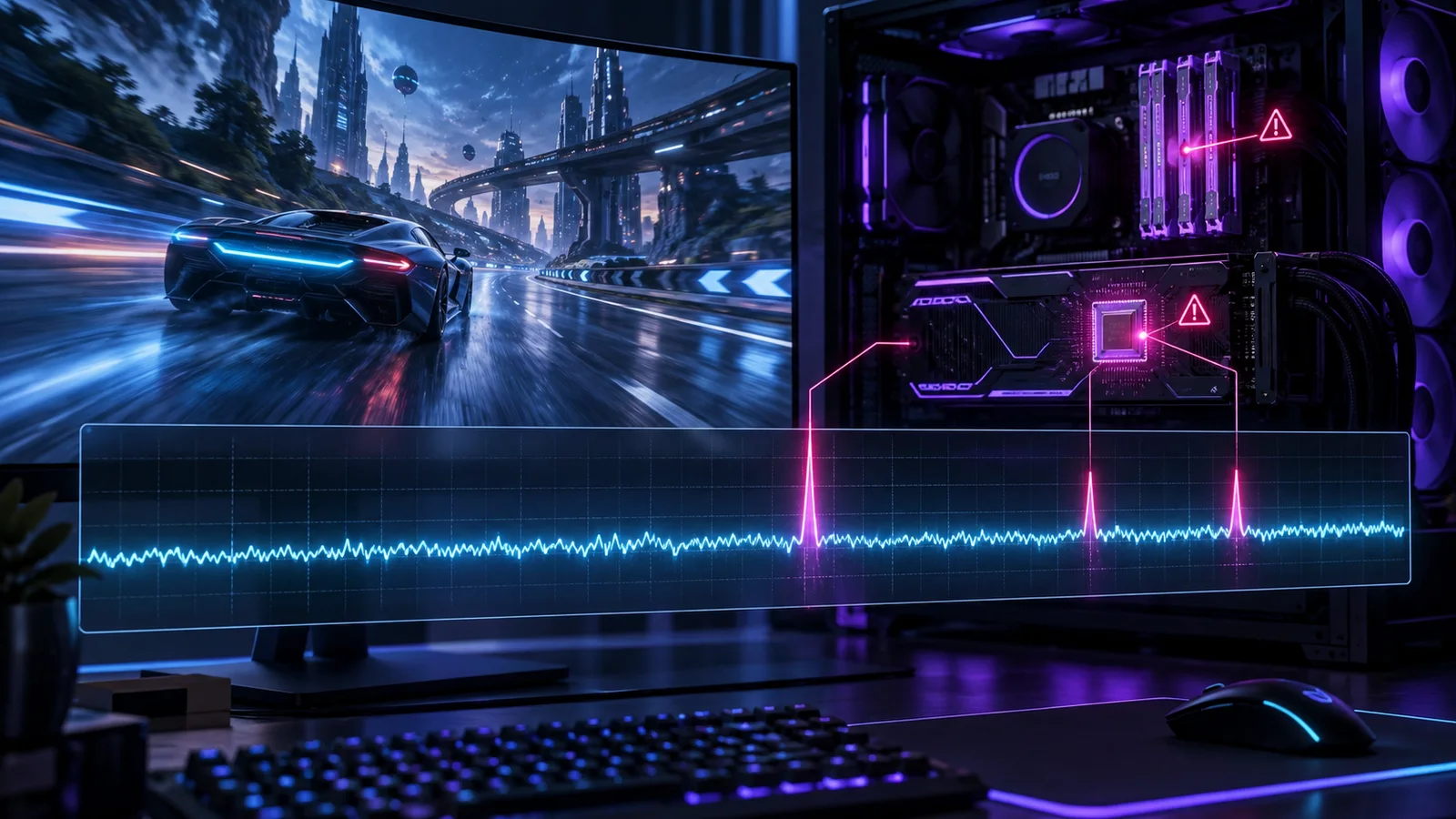
If the base is weak, generated frames can make camera motion look smoother while input still feels heavy. CPU spikes, shader compilation and asset-streaming hitches also remain visible because frame generation cannot repair an unstable simulation.
Measure the base with frame generation disabled. Fix major stutter first, then add the feature and compare latency by feel and with the game's latency statistics when available.
Choose the super-resolution mode by output resolution
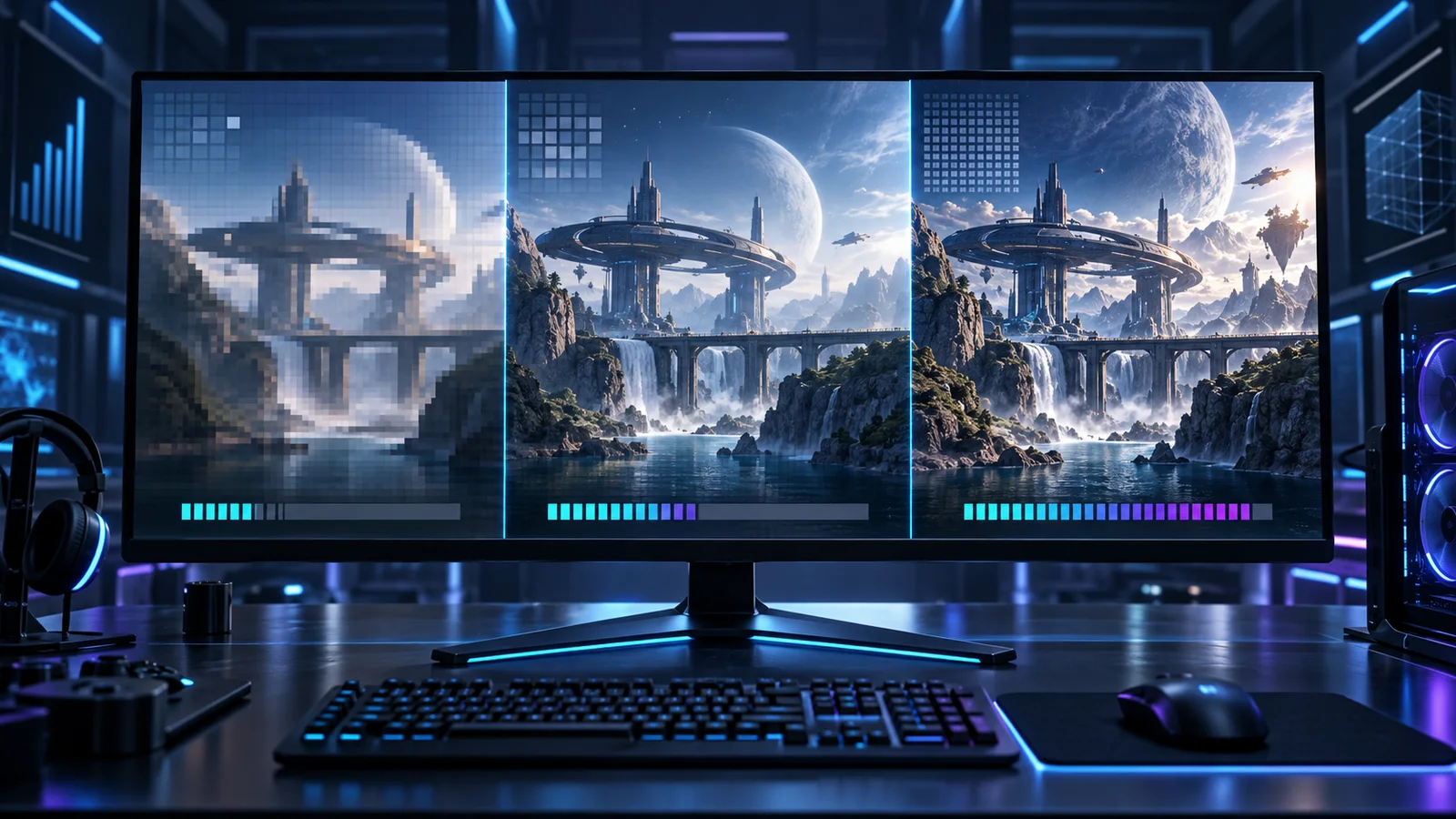
Preset names describe the internal-resolution tradeoff. Quality mode retains more source pixels. Balanced and Performance modes reduce the internal resolution further to create more GPU headroom.
For desktop monitors, use this order:
- At 1080p, prefer native anti-aliasing or Quality mode. Aggressive modes begin with too little source detail for many games.
- At 1440p, start with Quality. Use Balanced only when it solves a clear GPU limit and motion remains stable.
- At 4K, Quality often provides the most convincing trade. Balanced can be useful with heavy ray tracing, while Performance needs closer inspection of fine detail and motion.
Use our 1080p, 1440p and 4K desktop guide to choose the output target before comparing reconstruction modes.
Check whether upscaling solves the actual bottleneck
Super resolution mainly reduces GPU rendering work. If changing from native resolution to Performance mode barely improves FPS, the desktop may be limited by the CPU, game engine, frame cap or background process.
Run the same scene with frame generation disabled:
- A large FPS improvement after lowering internal resolution points toward a GPU limit.
- Little change with lower resolution points toward a CPU or engine limit.
- Higher average FPS with the same periodic spikes points toward a frame-time problem rather than simple GPU throughput.
Do not lower image quality repeatedly when the CPU is already the limit. Reduce crowd density, simulation quality, object distance or another CPU-heavy option instead.
Treat frame generation as a finishing step
Frame generation works best for visually demanding single-player games where a stable conventional base already exists. It can make a 70 FPS base look much smoother on a high-refresh monitor while upscaling leaves enough GPU time for ray tracing or higher settings.
It is less attractive for competitive games where the newest input needs to reach the screen as quickly as possible. A generated 180 FPS output does not behave like 180 conventionally rendered frames. Use the game's latency reduction option, keep the base frame rate healthy and compare the response with generation disabled.
Multi Frame Generation increases the number of generated frames per conventionally rendered frame. That can improve display smoothness at high output rates, but it makes a strong base and correct latency management even more important.
Inspect motion instead of a paused screenshot
Reconstruction quality changes while the camera moves. Check the exact problems that are easy to hide in a static comparison:
- Fine foliage and fences that shimmer.
- Hair, particles and transparent effects that lose detail.
- Trails behind moving characters or weapons.
- Newly revealed edges that appear unstable.
- Interface elements that flicker during frame generation.
- Rapid camera pans that expose disocclusion artifacts.
Test a bright outdoor area, a dark reflective scene and a fast combat sequence. One implementation can look excellent in a slow benchmark and struggle with particles or thin geometry during play.
Use latency tools without ignoring control feel
NVIDIA Reflex, AMD's supported latency features and Intel Xe Low Latency are designed to reduce queueing or other latency in compatible pipelines. Enable the latency option recommended for the selected frame-generation feature.
Metrics still need context. A lower reported system latency is useful, but mouse movement, camera response and frame consistency decide whether the setting is comfortable. Test with the same frame cap, route and input device.
Avoid stacking unrelated driver overrides while establishing a baseline. Start with the in-game implementation and a current stable driver, then change one external option at a time.
Use this desktop testing order
- Set the monitor to its intended refresh rate in Windows.
- Select the native output resolution.
- Disable frame generation and record the base frame rate.
- Compare native rendering with Quality super resolution.
- Check fine detail and motion in the same route.
- Move to Balanced only if Quality does not provide enough headroom.
- Enable the supported low-latency option.
- Add frame generation and compare response, frame time and visual artifacts.
- Save the profile only after repeating the test.
If periodic spikes remain in every mode, use our frame-time, VRAM and shader stutter guide. Reconstruction cannot fix a system-level interruption.
Choose the feature that solves a measured problem
Use native rendering when the desktop already meets the target and the game's anti-aliasing is stable. Use Quality super resolution when the GPU needs more headroom with a small visual cost. Use Balanced or Performance only after checking motion at the intended output resolution. Add frame generation for smoother single-player presentation when the conventional base and latency are already acceptable.
There is no permanent winner across every title. DLSS, FSR and XeSS are implementations inside a specific game. Compare the versions available on your desktop instead of choosing from the logo alone.
Official references: NVIDIA DLSS 4.5 overview, AMD FSR technologies, and Intel XeSS 2 whitepaper.
See DLSS, FSR and XeSS side by side
This independent comparison shows how the three upscalers affect image quality and performance on different GPUs.