
Quick answer: Use the official Windows client, protect the correct account and tune the map for long sessions and large battles.
Some links in this article are tracked. GamerigPro may earn a commission if you take an eligible action through them. This does not change your cost or our editorial judgment.
Rise of Kingdoms benefits from a larger screen, precise map movement and faster access to alliance information. The desktop client can make long sessions easier, but only if the correct account is linked and large fights remain responsive. Install Rise of Kingdoms on PC through the official path, verify your profile and test the map before committing to the setup.
Use the official client
Use the official Windows client and avoid installers from unrelated download sites. The publisher promotes a dedicated PC launcher with background updates, shortcut support and a desktop interface built for different screen sizes.
Download the installer, choose a drive with room for future patches and let the launcher complete its own verification. Keep the installer and game in a normal Windows folder. Security software can interfere with a launcher when it is placed in a protected or unusual directory.
Before opening the client for the first time, update Windows and the graphics driver. Restart after a large driver update so the game begins with a clean graphics session.
Protect the correct account
Link the correct account on your current device before changing platforms. Then use the same login method on Windows. Confirm the commander name, kingdom, character power and alliance immediately after signing in.
If the PC client opens a new city, stop before completing more progress. A different login provider or account can create a separate profile. Return to the login screen and verify the original account instead of building two cities by accident.
Players starting fresh can follow our Rise of Kingdoms first seven days guide after the account is secure.
For the Windows route discussed here, open the Rise of Kingdoms PC offer when you are ready to install or return to the game. Check the platform and account options at the destination first.
Install the official client, verify your account and tune the game for long map sessions.
Learn the desktop controls
Begin at your city, then practice moving across the map, changing zoom levels, selecting resource nodes and returning home. Open alliance chat and learn the available shortcuts before a major event begins. The goal is to reduce menu friction while several marches are active.
Use a resolution that keeps labels readable without making the interface tiny. A 1080p baseline works well on many laptops and monitors. If text looks too small, adjust Windows scaling or the available game display options before lowering the full resolution.
Tune large battles
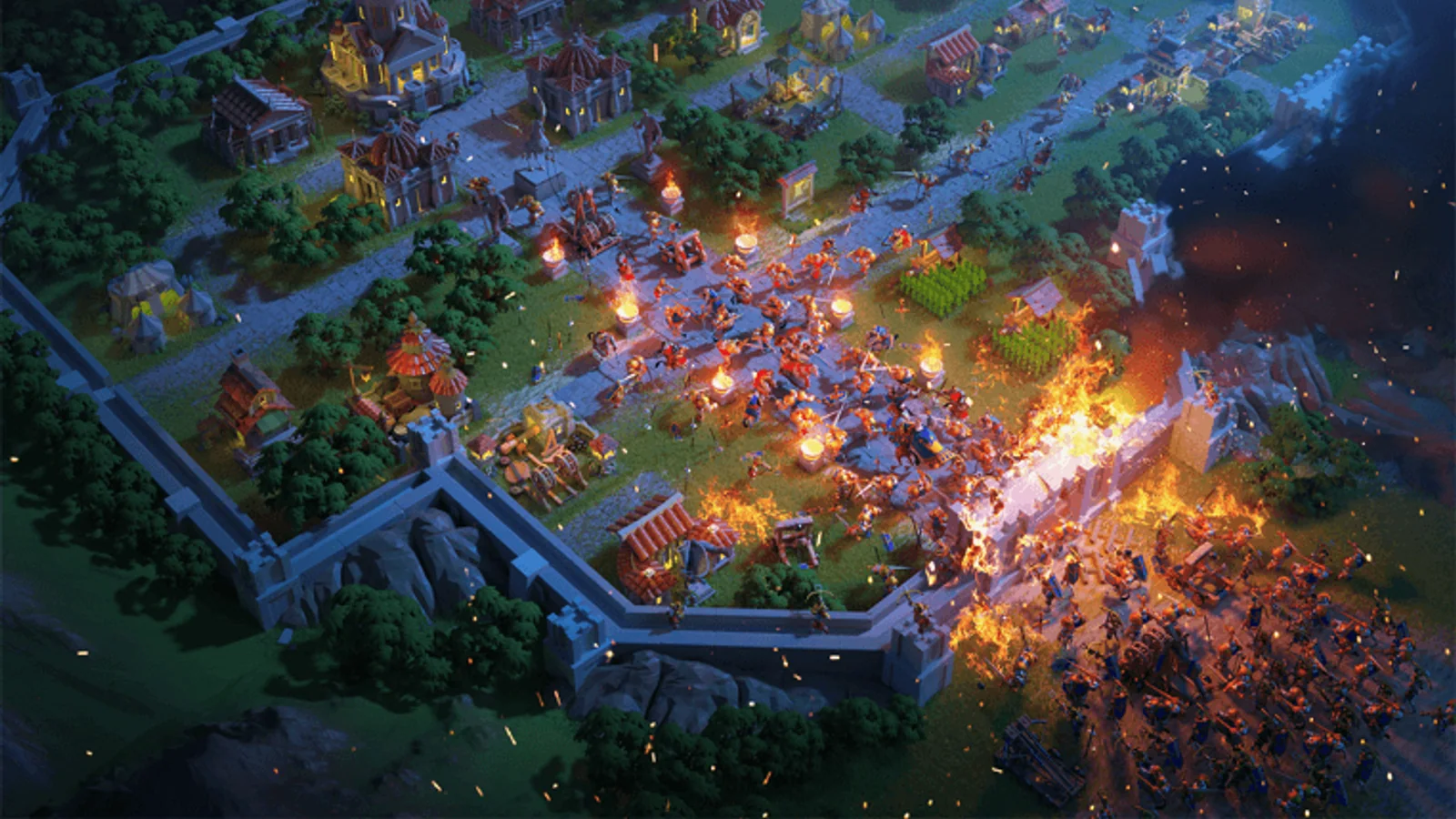
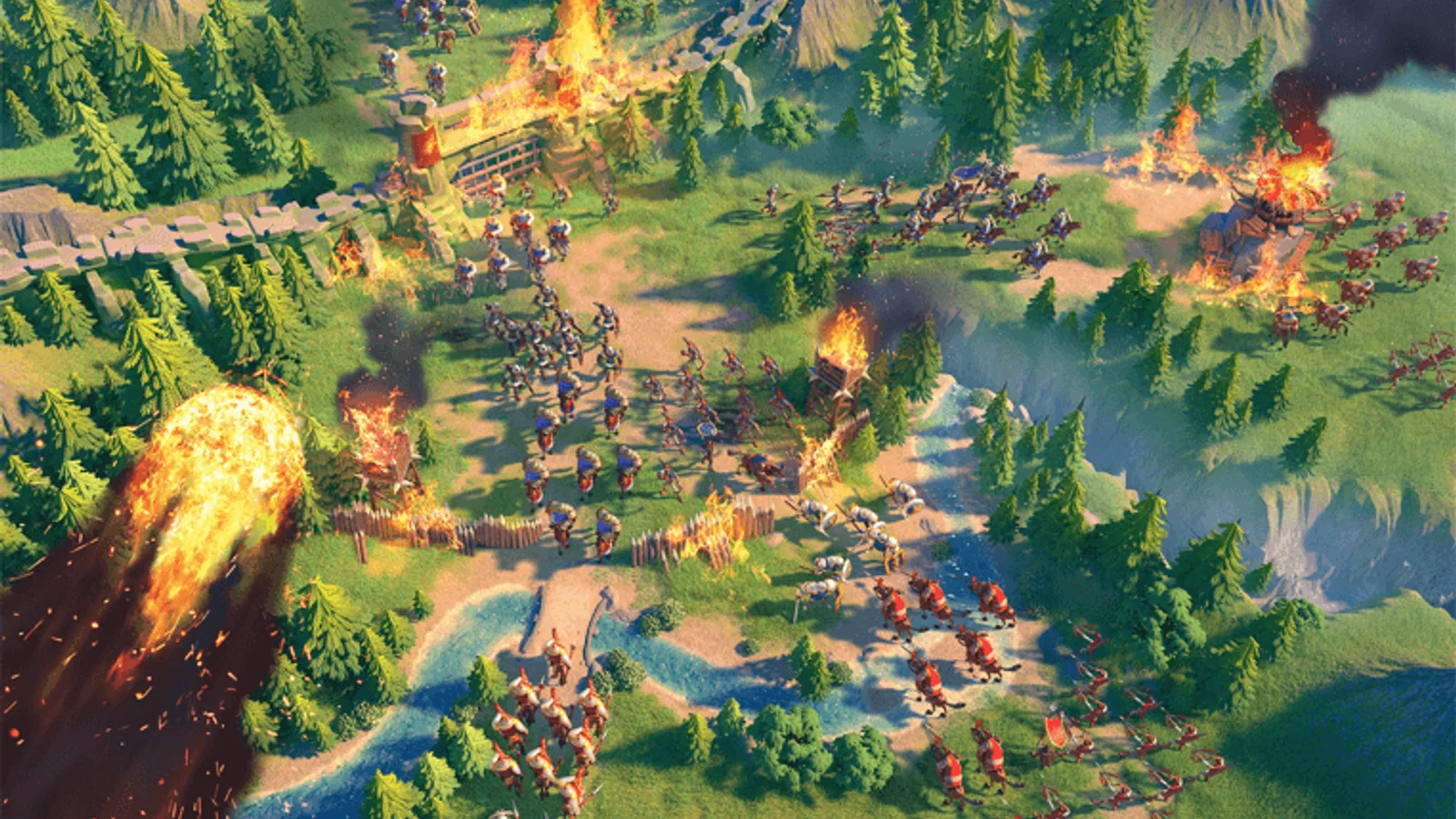
The city view is not a useful performance benchmark. Move to an active pass, alliance rally or crowded objective. Pan across the fight, zoom in and out, then open chat while units are moving. This combines the map, effects and interface load that matters during real play.
If the client becomes uneven:
- Reduce graphics quality or effect density one step.
- Lower the resolution only after the lighter preset is tested.
- Close browser video, streaming software and unused launchers.
- Keep the laptop connected to power and check cooling.
- Pause other downloads while an alliance battle is active.
Network delay can resemble poor performance. If march commands take time but animation remains smooth, test the connection and server latency before lowering graphics again.
Build a stable long-session setup
Strategy sessions can stay open much longer than a normal match. Watch memory use and temperature after thirty minutes, not only during the first five. If performance fades over time, restart the client before important events and close background apps that keep growing in memory.
Use borderless or full screen mode according to how often you switch to chat or a browser. Borderless mode makes switching easier. Full screen may be more consistent on some older systems. Test both in the same active map area.
Maintain the installation
Update through the launcher and keep enough free storage for temporary files. After a major patch, let the launcher finish before opening multiple apps. If files appear damaged, use the official launcher repair option or reinstall from the publisher rather than mixing files from another source.
Once the client, account and controls are stable, keep the final settings simple. A dependable map and clear alliance information matter more than a heavier visual preset.
Official reference: Rise of Kingdoms official PC page.
See it in motion
An official video gives you a clearer look at the world, combat and pace.
Install the official client, verify your account and tune the game for long map sessions.