

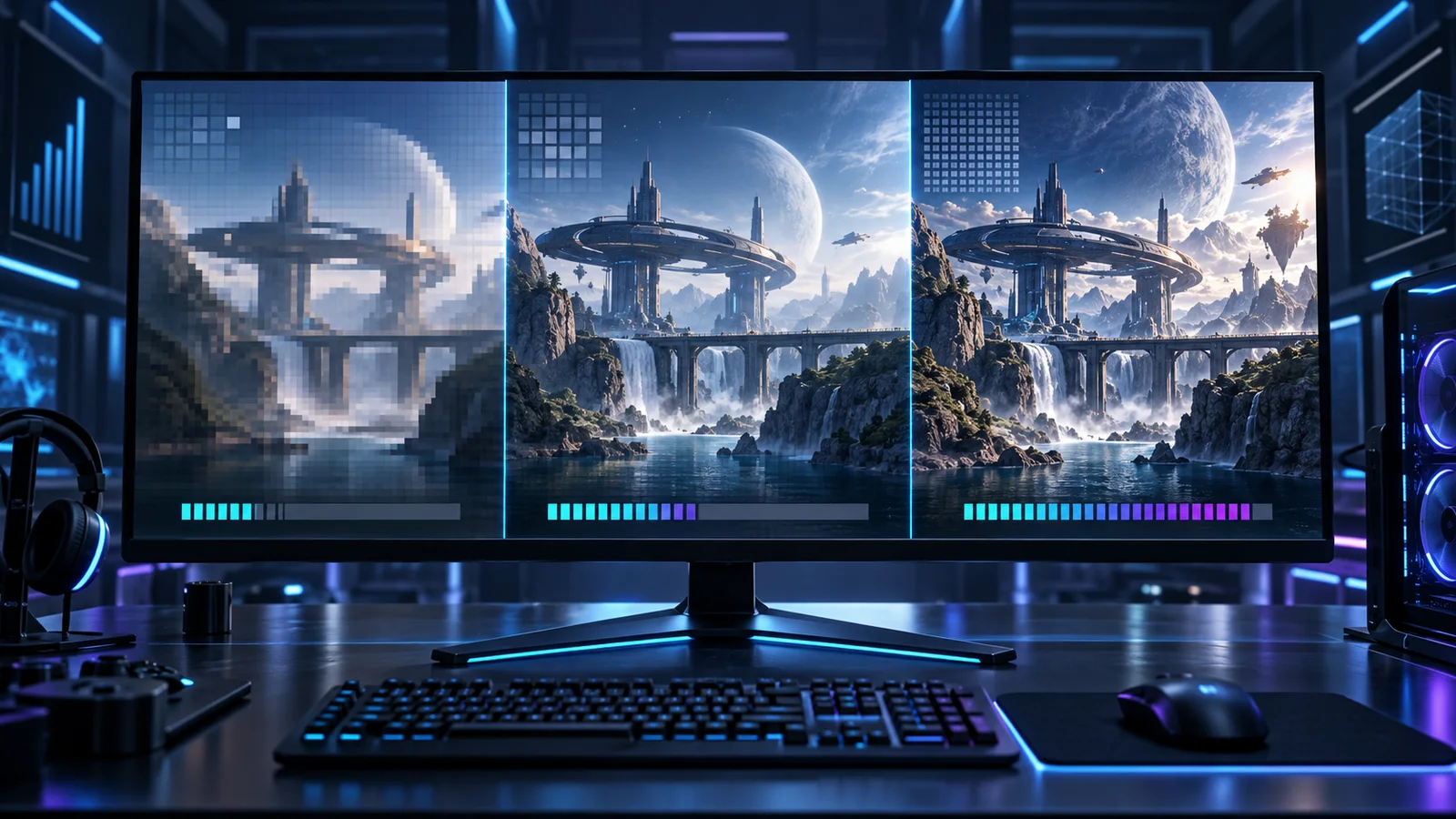
Quick answer: Choose a resolution by balancing screen size, GPU load, image clarity and the frame rate your PC can hold consistently.
The best resolution for desktop PC gaming is the one your monitor can display sharply and your graphics card can sustain at the frame rate you actually want. For most 27-inch gaming monitors, 1440p is the balanced choice. A 24-inch 1080p display still makes sense for competitive play and lighter GPUs. A 32-inch 4K monitor is strongest when clarity matters and the desktop has enough GPU headroom or a good upscaling option.
Do not choose by resolution alone. Screen size, refresh rate, graphics settings, VRAM and the games you play decide whether the result feels right.
Start with the real pixel workload
Resolution describes the number of pixels in each completed frame:
- 1920 by 1080 contains about 2.1 million pixels.
- 2560 by 1440 contains about 3.7 million pixels.
- 3840 by 2160 contains about 8.3 million pixels.
1440p asks the GPU to process about 78 percent more pixels than 1080p. Native 4K contains four times as many pixels as 1080p and more than twice as many as 1440p. Lighting, post-processing and engine behaviour complicate the final result, so those ratios do not become a fixed FPS penalty. They do explain why a game that is comfortably GPU-limited at 1080p can become much heavier at 4K.
Resolution matters less when the CPU is the limit. If a desktop produces almost the same FPS at 1080p and 1440p in the same scene, lowering the resolution again will probably not solve the main bottleneck.
Match resolution to desktop monitor size
Pixel density affects how clean a resolution looks at normal desk distance. These are practical starting points, not strict rules:
- 1080p works best around 24 or 25 inches. It keeps text and game detail reasonably dense while supporting affordable high-refresh monitors.
- 1440p is a strong fit for 27 inches. It looks noticeably sharper than 1080p without the full performance cost of 4K.
- 4K becomes especially useful at 27 to 32 inches. Fine text, distant geometry and detailed single-player environments benefit from the extra density.
A 32-inch 1080p monitor can expose visible pixel structure from a normal desktop distance. A small 4K monitor can look excellent, but Windows scaling and the game's interface need to behave correctly. Always run the desktop at the panel's native resolution unless a specific troubleshooting test requires otherwise.
Choose refresh rate before chasing maximum detail
Resolution and refresh rate compete for the same performance budget. A player targeting 240 FPS in a competitive shooter has different needs from someone targeting a stable 60 or 90 FPS in a cinematic RPG.
Use these combinations as common desktop targets:
- 1080p at 144 to 360 Hz prioritizes responsiveness and is easiest to feed with a high frame rate.
- 1440p at 144 to 240 Hz balances sharpness with fast motion and suits a broad range of gaming desktops.
- 4K at 60 to 165 Hz prioritizes image detail and usually needs a stronger GPU, reduced settings or reconstruction in demanding games.
The monitor refresh rate is a ceiling, not a performance guarantee. A 240 Hz display can still show a 90 FPS game smoothly with variable refresh rate, but buying a faster panel does not make the GPU render faster.
Choose 1080p for competitive speed and lighter desktop GPUs
1080p remains useful when low input latency, high refresh rate and predictable performance matter more than maximum image detail. It gives the GPU more time for higher FPS, stronger effects or a lower power target.
Desktop cards in entry and lower-midrange classes are more likely to hold demanding games at 1080p without aggressive reconstruction. Competitive games can also become CPU-limited at this resolution because the GPU finishes frames quickly and waits for the processor to prepare more work.
The weakness is clarity on larger screens. Foliage, distant objects and thin geometry can shimmer when the anti-aliasing implementation is poor. Aggressive upscaling at a 1080p output starts from a very low internal resolution, so native rendering or a quality-focused mode is usually the cleaner option.
Treat 1440p as the desktop sweet spot
1440p gives a clear improvement over 1080p while leaving much more performance headroom than native 4K. On a 27-inch monitor, it supports detailed single-player games, fast shooters and everyday desktop use without requiring the most expensive GPU tier.
Midrange and upper-midrange desktop GPUs are commonly built around this target, but the game and settings still matter. Heavy ray tracing, maximum volumetrics and ultra shadows can turn a comfortable 1440p result into a GPU limit. High settings often look nearly identical to ultra while running more consistently.
If the desktop can hold the desired refresh range at 1440p, moving to 4K may provide less practical benefit than improving frame pacing or enabling a stronger lighting setting.
Use 4K when the display and game reward clarity
4K is strongest on a larger monitor and in games with detailed environments, stable anti-aliasing and slower camera movement. Strategy games, racing games and cinematic adventures can benefit from cleaner edges, distant detail and a larger desktop workspace.
The cost becomes obvious in modern ray-traced games. Higher resolution increases render-target pressure and can raise VRAM use before textures are considered. A desktop GPU with more memory headroom is helpful, but capacity alone does not guarantee enough rendering performance.
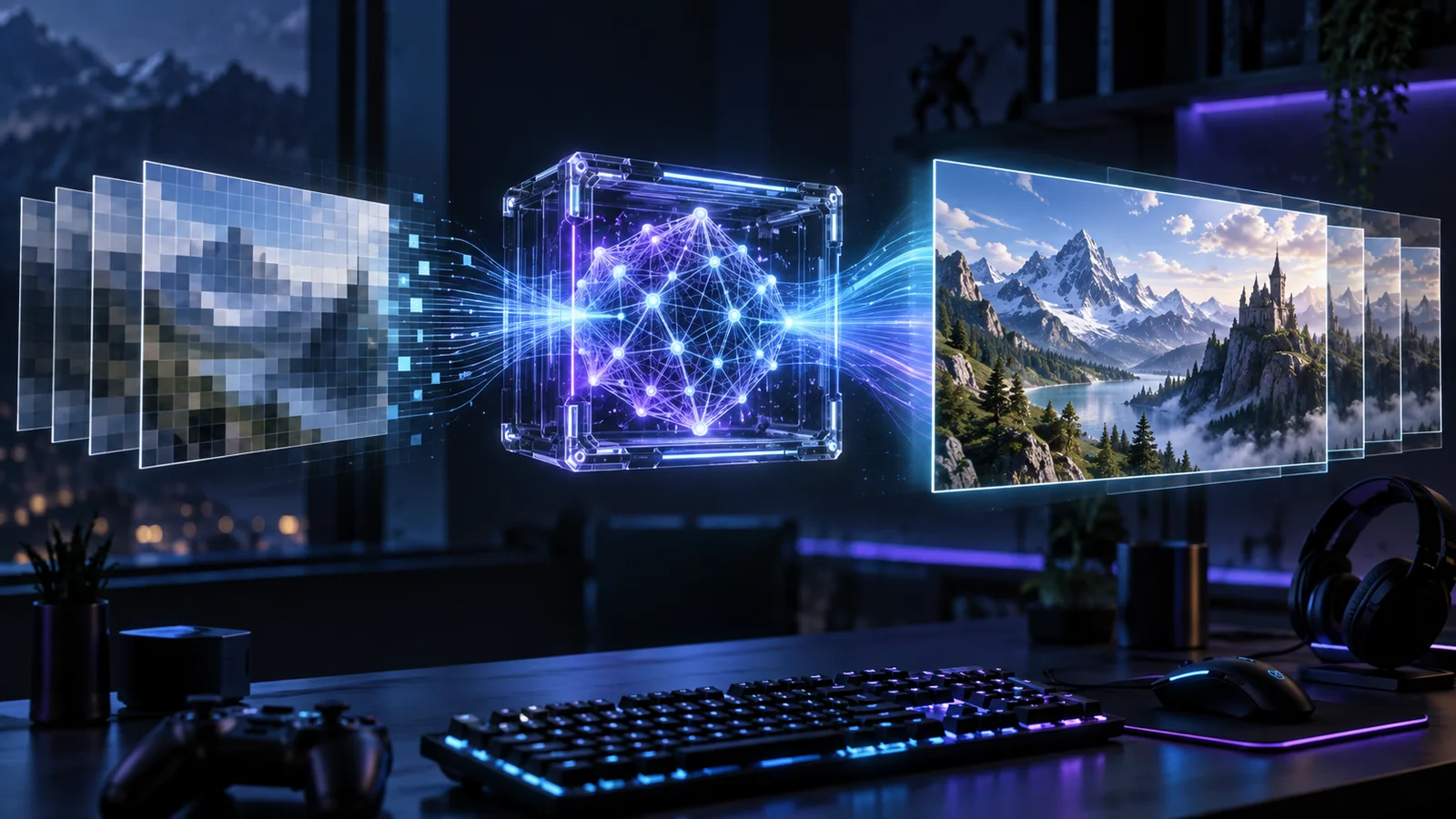
Do not reduce every visual setting just to keep a native 4K label. A quality-focused DLSS, FSR or XeSS mode at 4K output can produce a better overall image than native 4K with important lighting and geometry settings cut too far. Our updated DLSS, FSR and XeSS guide explains how to choose the mode and test its latency.
Check VRAM and graphics settings separately
Resolution affects more than the final pixel count. Higher-resolution render targets, ray tracing data and some anti-aliasing methods consume additional graphics memory. Texture quality usually has the most direct relationship with texture memory, but the full working set matters.
If a game shows sudden camera-turn hitches at 4K, lower textures one step without changing resolution. If that fixes the interruption, VRAM pressure was more likely than raw shader throughput. If FPS rises smoothly when resolution drops, the GPU rendering workload was probably the larger problem.
Avoid changing resolution, textures, ray tracing and shadows in one pass. A single-variable test tells you which adjustment actually helped.
Verify the desktop display connection
The monitor, graphics card and cable must support the chosen resolution and refresh rate together. Check the monitor's DisplayPort or HDMI input capabilities and the output specification on the desktop GPU. Some displays only expose their maximum refresh rate through one input or with a specific display mode enabled.
In Windows, confirm that the desktop is using the intended refresh rate after changing a cable, driver or monitor. A 165 Hz panel running at 60 Hz can make a healthy gaming PC feel slower even when the FPS counter looks normal.
Test the combination instead of trusting a preset
Use the same demanding route or encounter for every pass:
- Start at the monitor's native resolution.
- Choose the frame-rate target that matches the display and game.
- Record average FPS, 1 percent lows and frame time.
- Lower resolution or enable Quality upscaling before changing several settings.
- Adjust one expensive option at a time.
- Repeat the route and compare the same camera movement.
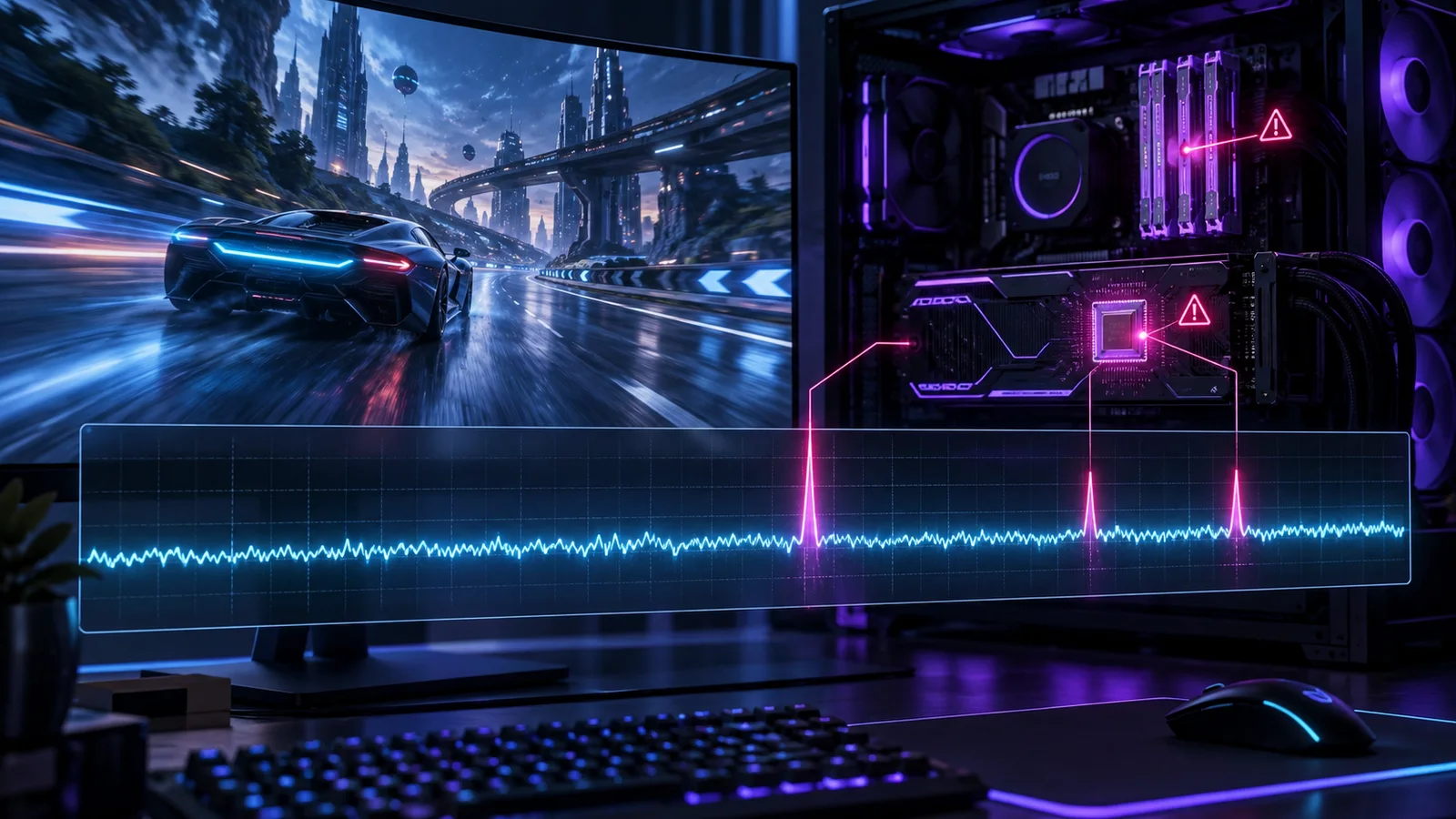
Watch for consistency, not one peak number. A stable 90 FPS can feel better than an average of 120 FPS interrupted by long frames. If lowering resolution does not remove the interruptions, follow our desktop PC stutter checklist instead of continuing to cut image quality.
Use this desktop recommendation
Choose 1080p for a 24-inch high-refresh setup, competitive games or a desktop GPU that needs more headroom. Choose 1440p for a 27-inch monitor and the best general balance of clarity, refresh rate and GPU cost. Choose 4K for a larger display, detail-focused games and a desktop with enough GPU performance or high-quality reconstruction.
The right answer can change by game. Saving a competitive profile and a demanding single-player profile is often better than forcing one resolution and settings combination onto everything.
Official references: Microsoft guidance on display resolution and AMD FidelityFX Super Resolution.
Compare 1080p, 1440p and 4K
This explainer compares image clarity, screen size and performance demands across the three common gaming resolutions.