
Quick answer: Install the Windows client, verify your account and learn the map controls that make fleet management easier.
Some links in this article are tracked. GamerigPro may earn a commission if you take an eligible action through them. This does not change your cost or our editorial judgment.
Star Trek Fleet Command becomes easier to manage on a large screen when several ships, events and alliance messages compete for attention. A careful setup protects your existing commander and makes the galaxy map easier to read. Install Star Trek Fleet Command on PC through its official Windows path, then confirm the profile before issuing any new orders.
Use the Windows client
Use the Windows client from the official game site. Avoid third party download pages because an outdated installer can create login or update problems. Keep free storage available for the launcher, game files and future patches.
Run Windows Update and install a stable graphics driver before the first long session. If the launcher requests a restart, complete it. This clears old files and gives the client a cleaner starting point.
Confirm your account
Sign in with the same account method used on your existing device. Check the commander name, station level, server and fleet before making progress. If the game opens a new account, stop and return to login instead of completing the tutorial again.
Account confirmation is the most important setup step because progress belongs to the correct profile and server. Take a quick screenshot of the account details on the original device before switching. It gives you a reference if the Windows client shows something different.
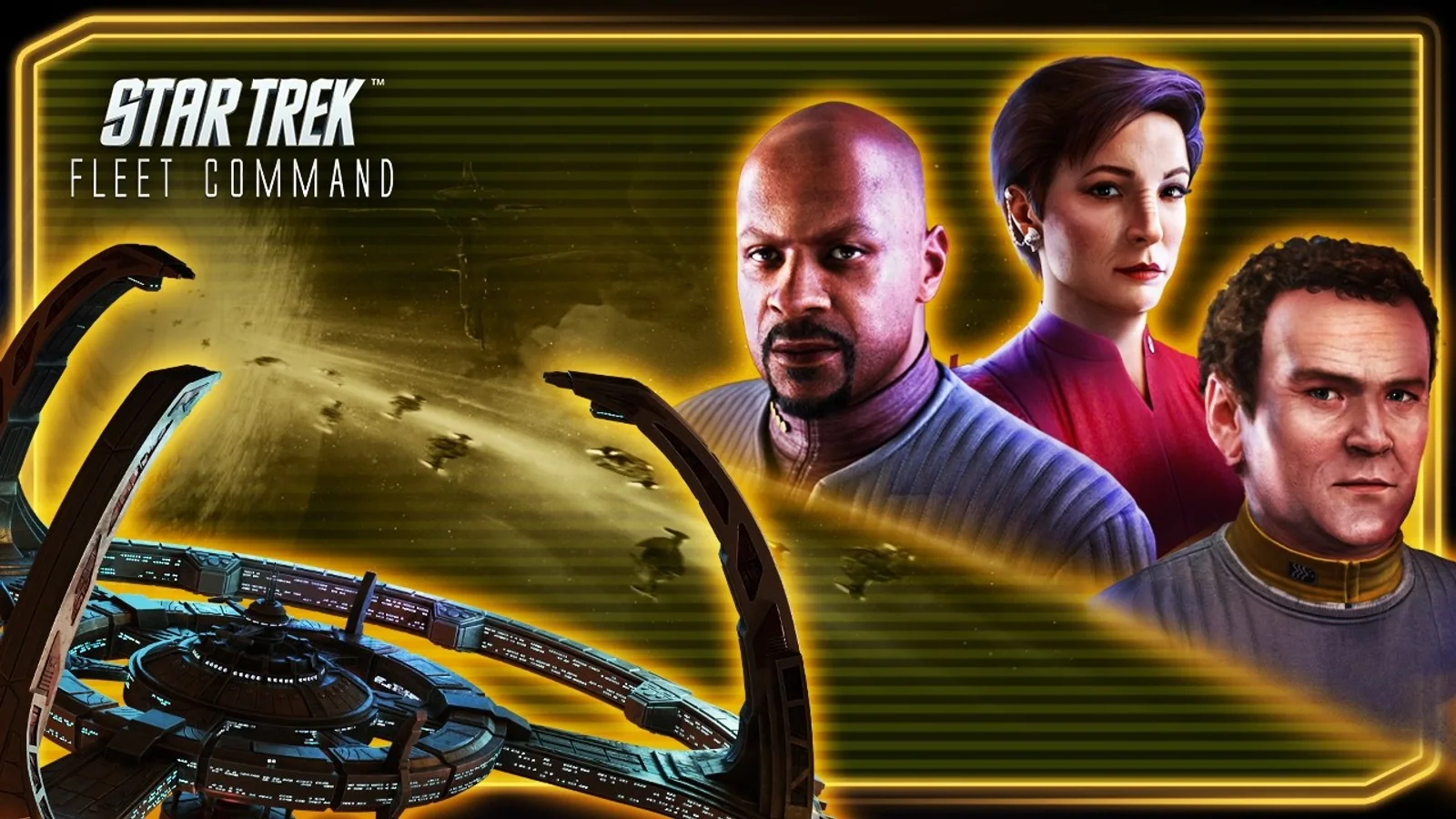
For the Windows route discussed here, open the Star Trek Fleet Command PC offer when you are ready to install or return to the game. Check the platform and account options at the destination first.
Install the PC client, confirm your account and learn the shortcuts that reduce menu friction.
Learn map movement first
Start at your station and practice the basic loop before joining an event:
- Move around the station and galaxy views.
- Zoom between local space and wider routes.
- Select a system, inspect its recommended level and return home.
- Open the ship panel and switch between active vessels.
- Check alliance chat while keeping the current target visible.
Learn the map controls before managing several ships at once. A large screen helps only when labels, routes and ship status remain easy to scan.
Make fleet information readable
Use the monitor's native resolution first. If text is too small, adjust display scaling or available interface settings rather than dropping immediately to a blurry resolution. Keep fleet management readable during long resource and event sessions.
Place the game where notifications are visible but do not hide essential controls. If you use two monitors, keep chat or a reference page on the second display without running heavy video in the background.
Our Star Trek Fleet Command PC review explains the progression loop and can help you decide whether this style of fleet management fits you.
Test performance in active systems
Busy systems reveal stutter more clearly than the station view. Travel to an area with several ships, pan across the system, open menus and switch between vessels. Test for ten to fifteen minutes so heat and background activity have time to affect the PC.
If movement becomes uneven, lower the graphics preset one step and repeat the same route. Close heavy browser tabs, capture tools and launchers. If animation stays smooth but commands respond late, investigate the internet connection and server response instead of reducing visual quality.
Choose a practical display mode
Borderless mode is useful when you switch often between the game, alliance tools and a browser. Full screen can give older systems a cleaner path to the GPU. Compare both modes in the same active system and keep the one with steadier frame pacing.
On a laptop, connect the charger and choose a performance focused Windows power setting. Make sure the dedicated GPU is selected when the machine also has integrated graphics. Sudden slowdowns after several minutes can indicate heat, so clear the vents and avoid playing on a soft surface.
Keep updates and sessions predictable
Open the launcher before an alliance event so updates can finish early. Keep enough free space for temporary files and restart the client after a large patch if menus or assets load incorrectly. Use official repair or support options when a problem persists.
Save the final resolution and quality choices, then avoid changing several settings during an event. A consistent map, readable status information and reliable input are the parts of the PC experience that help most.
Official reference: Star Trek Fleet Command official site.
See it in motion
An official video gives you a clearer look at the world, combat and pace.
Install the PC client, confirm your account and learn the shortcuts that reduce menu friction.